Managing service provider settings > Settings > Set service provider settings
|
|
|


Set service provider settings
- From the navigation bar, click Service Provider>Settings.
The
 Service Provider Settings page opens.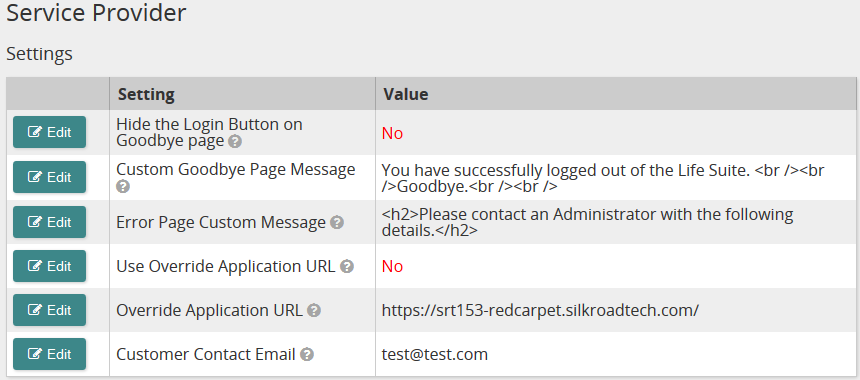
Use this page to set and edit service provider settings. Service provider settings control how Life Suite Authentication functions.
Settings
Hide the Login Button on Goodbye page
The Goodbye page applies when Single Logout is not supported or you are using IDP-Initiated SSO. You will be directed to a SilkRoad-rendered Goodbye page to indicate you have logged out of SilkRoad modules. From this page, you can include a login button to allow users to be reauthorized for SilkRoad modules and your own additional content/message (Custom Goodbye Page Message setting).
Select No to display the Login button on the Goodbye page or select Yes to hide (not display) it.
Custom Goodbye Page Message
If you are using a Goodbye page (see above), enter a custom goodbye message to appear on the Goodbye page.
Tip: When including a custom goodbye message, it is best practice to instruct users to close browsers.
Error Page Custom Message
When Life Suite Authentication routes an authenticated user to an error page, an additional custom message can be displayed to provide instructions on dealing with the error. A custom message might also include an email link to your IT department and a link to start over.
Enter a custom error message or leave blank for no custom error message.
Use Override Application URL
The full SSO process requires multiple redirects between SilkRoad and your systems. During the redirect process, information about a user's URL destination is continually passed. This information is called the referrer. (If performing IDP-Initiated SSO, it is called the relaystate.)
If a user is successfully authenticated but no referrer is associated, Life Suite Authentication does not know where to route the user. You can use this setting along with the Override Application URL setting to control where the user is redirected in this scenario. Your options:
- (Default) Life Suite Authentication displays an error page. The current release includes redirect buttons to Life Suite modules. An upcoming release will remove those buttons and provide an error message. To keep this default error page, set Use Override Application URL to No.
- Redirect to Life Suite Talent Portal. Set Use Override Application URL to Yes and then specify your Talent Portal URL in the Override Application URL box.
- Redirect to your own portal or intranet. Your portal or intranet page might include links to specific Life Suite modules. Set Use Override Application URL to Yes and then specify your portal page in the Override Application URL box.
Override Application URL
If you are using on override application URL (Use Override Application URL setting is Yes), enter the URL here.
Customer Contact Email
Enter the email address(es) of people to contact at your organization when there are outages and upgrades. Use a semicolon to separate each email address.
Tip: Best practice is to use an email distribution list here. This ensures that the correct people are notified and you do not have to manually maintain a list within Life Suite Authentication.
Buttons, links, and options

Click to access and edit a specific setting.
- In the grid, click beside a setting.
- On the Edit Setting page, select or enter a value.
- Click
 .
.
| Copyright © 2015 SilkRoad Technology. All rights reserved. | 
 Print page Print page |