|
|
|


Add and enable a Talent App for SSO
- From the navigation bar, click Applications.
The
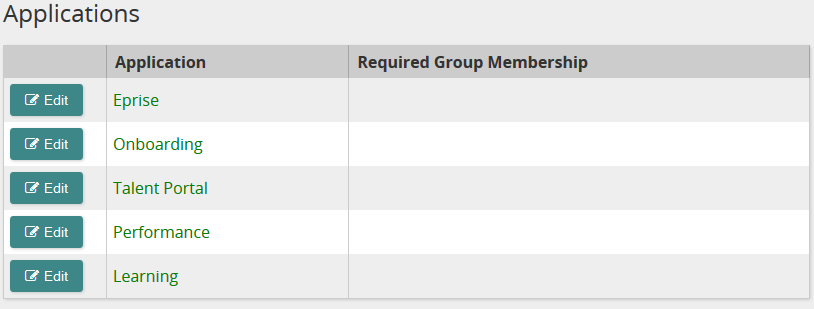
 Applications page opens.
 - Click
 .
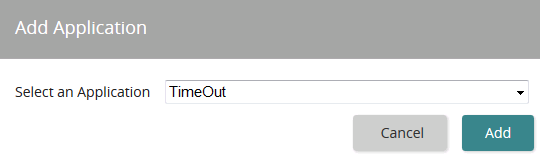
.The
Add Applications page opens. - In the Select an Application drop-down, select a Talent App.
- Click
 .
.The Talent App is added to the Applications list. It appears in red text because it is not enabled yet.
- In the grid beside the Talent App, click
 .
. - From the Enabled drop-down, click Yes.
- (If applicable) In the Required Group membership box, to restrict access by group claims/membership, enter the group claim.
- Click Save.
The Talent App appears in green text on the Applications page. It is now enabled for SSO.
Note: In most cases, the setup of SSO for a Talent App also requires that you share the IDPFederationMetadata file from SilkRoad with your Talent App representative or consultant. This can be retrieved at: https://{host-header}/Authentication/saml20/IDPFederationMetadata
| Copyright © 2015 SilkRoad Technology. All rights reserved. | 
 Print page Print page |