

|
|
|


FAQ: Common report questions
Can a supervisor obtain reports for their subordinates/direct reports from the Student Portal?
- Yes, supervisory reports can be made available via the Student Portal. Only students who have direct reports see these reports listed on the Student Portal Reports tile
Can I create custom reports?
- Yes, in addition to the 85 system default reports, customers can easily create custom reports using SQL Server Business Intelligence Development Studio. Note: Users will need to be able to use this application. If support is needed to create the custom report, this is a billable service that will need to be scoped.
Custom reports can be created from the Reports tab. This process includes the following steps:
- View the Properties for the desired report and note the name of the Report Query.
- Check the Report Query document under SilkRoad Learning Help to see which fields can be added to the report.
- Generate the desired report using SQL format (RDL).
- Save the file to your computer.
- Open the file in Microsoft Visual Studio or some other SQL software. (Free download available)
- Edit the file and add the desired field.
- Save the edited file to your computer.
- In SilkRoad Learning, go to Reports > Add and select Custom under Type.
- Browse to your file and upload it.
- Complete the remaining fields and save your work.
A customized report is now available under the Reports tab.
Can reports be scheduled to run automatically?
- Yes. Note that data view restrictions do not apply when the report is generated, so data must be controlled by setting and saving filters for the report prior to it being generated. This means when a scheduled report is viewed by a supervisor, the data is not automatically filtered as it is when run from the Student portal so that they see only their subordinates.
Company reports can be defined as "scheduled" reports so that they can be generated at a specific time on a specific schedule and then made available to privileged users either through the Admin portal or as a link sent via a notification.
To define a scheduled report, go to Learning > Monitor > Company Reports and click Add.
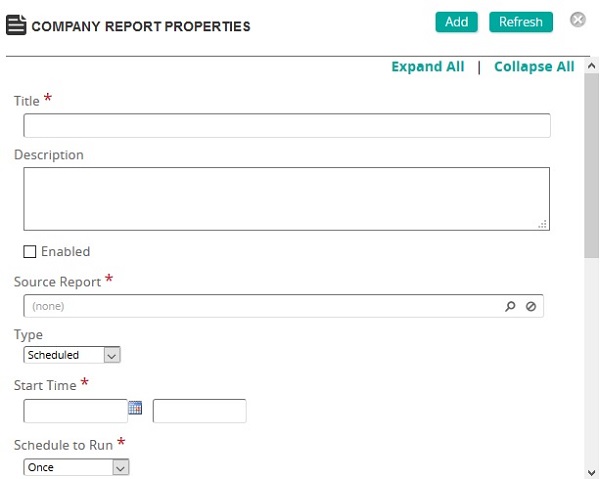
On the Company Reports Properties page:
- Add a title to the report.
- Add a description for the report (if desired).
- Click
 to search for and select the source report for this scheduled report.
 - Click the Type drop-down arrow and select Scheduled.
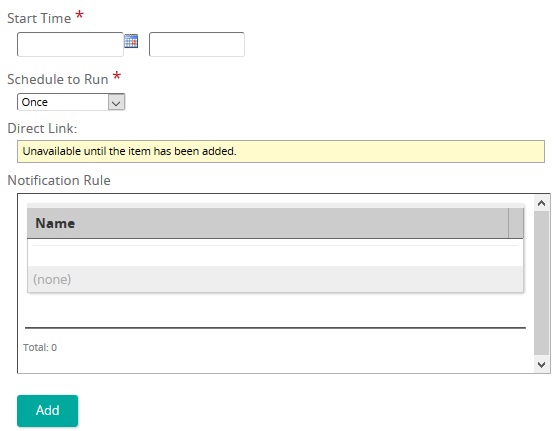
- Add the Start Time.
- Select the Scheduled to Run time from the drop-down list.
- Under Notification Rule, click the Add button and select the notification that is sent to recipients when the report is generated.
- To assign the report to selected workgroups, click the Access Restricted to Assigned Workgroups check box and move the desired workgroups from the available section to the assigned section.
Be sure to click the Add button to save your work and create the report.
| ©2021 SilkRoad Technology. All rights reserved. |
| Last modified on: 4/5/2021 12:37:06 PM |