|
|
|


Authentication Sources page
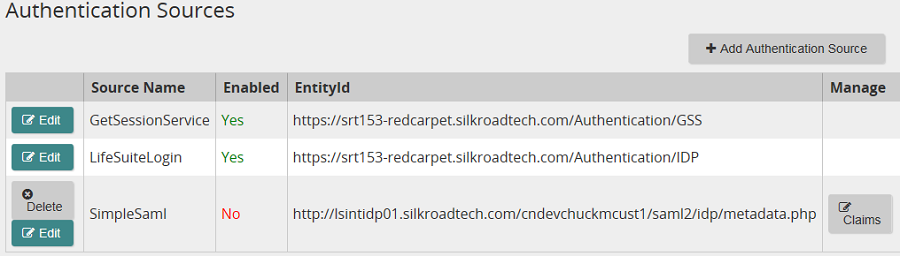
Use this page to set up and manage the authentication sources for your Single Sign-On experience. The available authentication sources are listed in the grid. You can easily identify the authentication source(s) you are using by looking at the Enabled column. Yes indicates an authentication source is enabled and in use. No indicates the authentication source is not in use. More than one authentication source can be enabled.
If more than one authentication source is enabled, a user is prompted for an authentication source selection when logging in. You can set an advanced setting (Save Authentication Source Selection) to allow the initial authentication source selection to be remembered via a cookie.
You can learn more about the different authentication sources in the Managing authentication sources topic.
Buttons, links, and options

Click to edit an authentication source.

Opens the Add Authentication Source page so you can define your IdP. There are several methods you can use to define your IdP. Refer to Adding IdP authentication sources for details.

Click this button to manage claims. This button only appears after a SAMLResponse is received from the IdP. Life Suite Authentication does not know about what claims assertions are coming from the IdP until it has received that first SAMLResponse feed.
Note: This button only applies to IdP authentication sources not Life Suite Login or Global GetSession authentication sources.
In this section |
| Copyright © 2015 SilkRoad Technology. All rights reserved. | 
 Print page Print page |