Preview a content object

View video

  1. From the navigation bar, click Content>Authoring/Staging/Library>Content Objects.

    Tip: The location of the content object depends on its status.

    The Content Objects page opens.
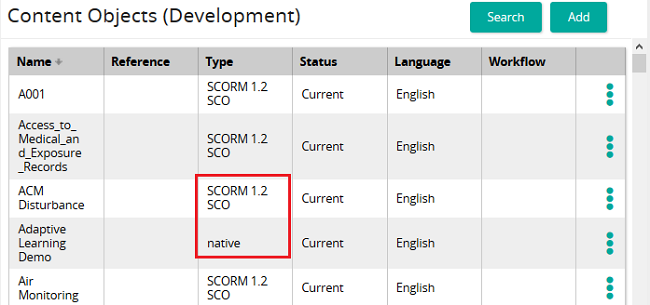
  2. Use the filter(s) to search for the desired content object.

    Note: Notice that both native and SCO objects are listed in the table.
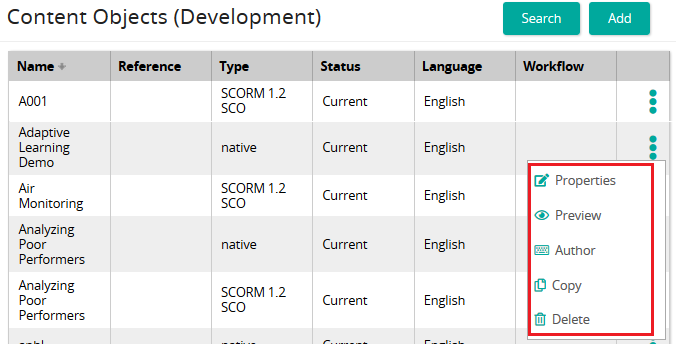
  3. Click and click Preview.
  4. In the pop-up window, select a skin, language, and required mark.
  5. Click View.

    A new window opens and the course is displayed as a student would view it.

See Also

Spotlight: Authoring and working with content

Overview

Content objects

Building a content object

Managing objects with categories

Content object concurrency management

Changing the status of a content object

Publish your content